
Before You Begin
Before we can link your new camera system to your phone, you must first create a secure account with Uniview, the manufacturer of your system.
Step-by-Step Setup
Download the UniEase App
The UniEase app works with both Apple iPhone/iPad and Android phones/tablets.
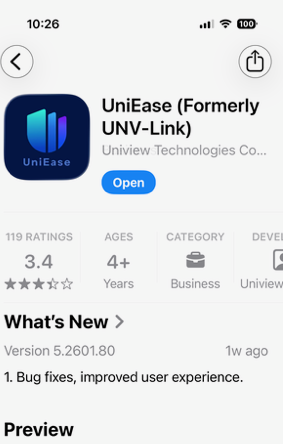
- For iPhone / iPad: Open the Apple App Store, search for UniEase, then install the app.
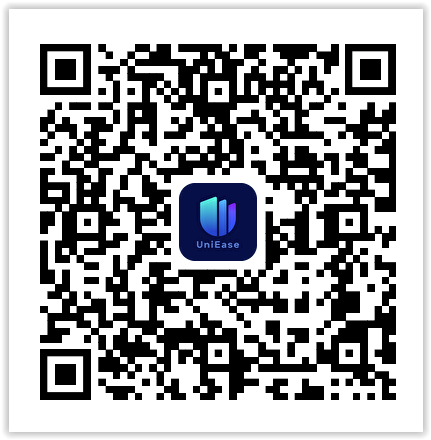
- For Android: Download the app from Uniview’s app store or scan the QR code shown below.
Open the App
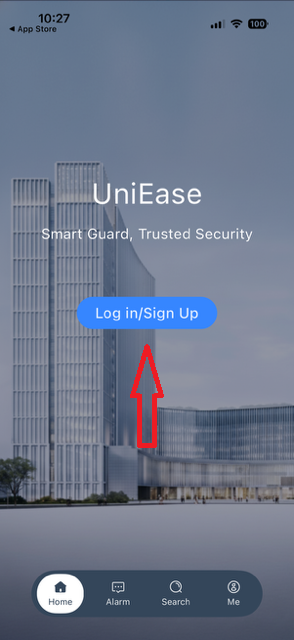
Once the app is installed, open it and tap “Log In/Sign Up”.
Select Phone Signup
We recommend using your mobile phone number as your username.
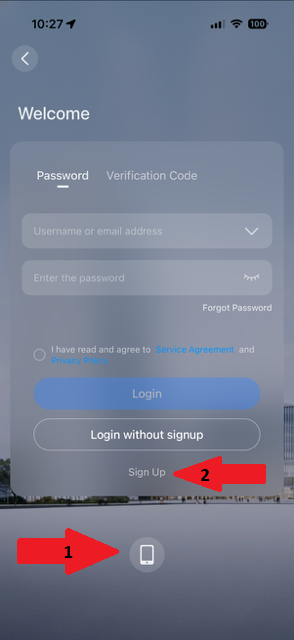
- At the bottom center of the screen, tap the Phone icon.
- Then select “Sign Up”.
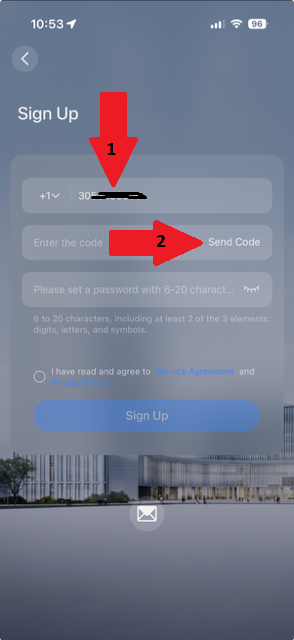
Enter Your Mobile Number
- Enter your mobile phone number.
- Tap Verify so a text verification code can be sent to your phone.
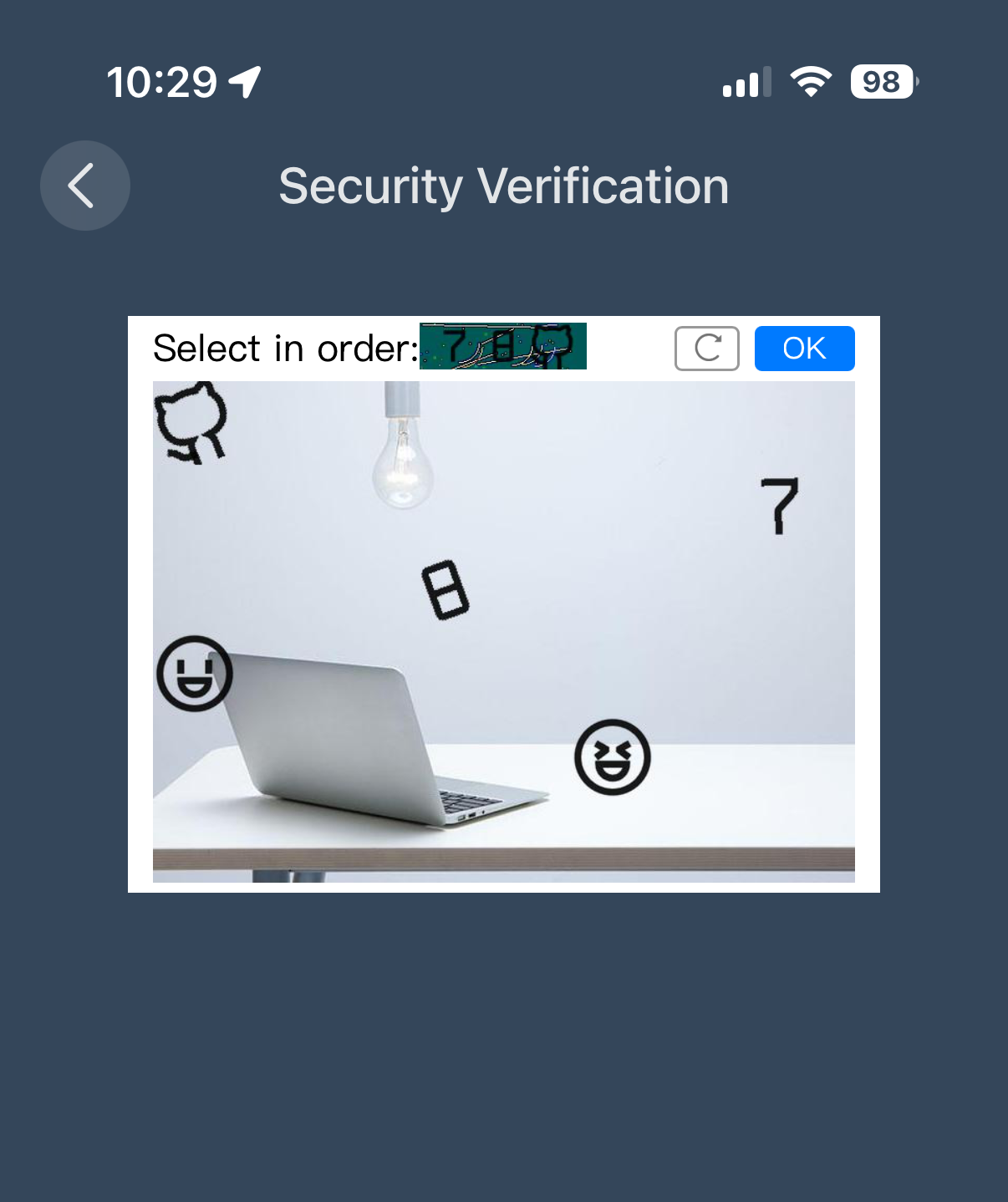
Complete the Security Verification
Follow the on-screen verification prompt. You will need to tap the icons or numbers in the order shown at the top of the screen.
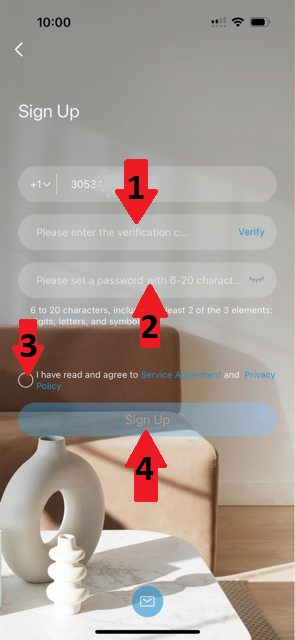
Create Your Password and Finish Signup
- Enter the verification code that was texted to your phone.
- Create your personal password.
- Your password must include letters and numbers and be at least 6 characters.
- Check “I Have Read and Agree to the Terms”.
- Tap Sign Up.
Contact Aressco for Final Connection
Once your account has been created, please contact Aressco so we can connect your camera system to your new account.
- We only need the phone number you used to register.
- That phone number is now your username for the UniEase app.
Optional: Share Access with Others
If you would like other family members or authorized users to have access to your cameras, please contact Aressco and we will advise you on the best sharing method for your system.
Need Help With Setup?
If you have any questions or would like assistance completing the setup, please contact Aressco. We will be happy to help.